|
|
|
/zqzq/cdcrazy.jpg)
Сделайте
BookMark - добавить
в
избраное
|
|
|
CdCraZy
|
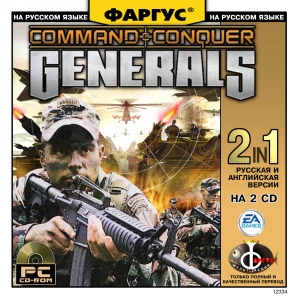
Command
& Conquer Generals
|
| К
игре |
Обзор |
Коды |
|
|
|
|
Вокруг
игр |
|
|
|
|
|
| Разработчик |
Westwood
Studios and EA |
 |
| Издатель |
Electronic
Arts |
| Жанр |
RTS |
| Похожие
игры |
|
| Требования |
|
| Дата
выхода |
22
Февраля (February) |
|
|
|
|
Патч
|
|
Скачать
(Download)
|
Размер
|
Дата
|
Описание
|
|
|
5.84
Mb
|
22.02.03
|
Патч
v 1.03
|
|
Command & Conquer(tm) Generals
IMPORTANT UPDATE FROM THE BATTLEFIELD
© 2003 Electronic Arts Inc. All rights reserved.
February 20, 2003
For latest news and updates visit GENERALS.EA.COM
- - Incoming transmission - -
General,
Thanks to the dedicated operatives at EA Pacific we have downloaded a a new
update to your C&C Generals combat simulation. Please be advised to review the
data below to best optimize your tactical situation.
-- GIA
- - End transmission - -
Version 1.3 - 2/20/03
Issues addressed
- QuickMatch stability and matching
- General connection fixups behind routers (multiple players behind the same
router, refreshing the player IP after a failed connection)
- Refresh button added to Custom Lobby
- Game List/Player List no longer pops to the top occasionally
- Player List no longer jumps, etc. making it difficult to click on a name
- Communicator requests addition of buddy to both players. Also, incoming
messages get a sound effect
- Spaces in front of games in Game List no longer allowed
- Game Lists/Player Lists alphabetize in upper and lower case
- Ping tolerance icon adjustment to make more useful
- More accuracy in number of players per game in Game List
1. KNOWN FIREWALL ISSUES AND WORKAROUNDS
1.1. Known Issues
1.2. Wireless SMC Routers
1.3. Linksys Routers
1.4. Other Routers
2. STABILITY ISSUES AND HEAT
3. VIA CHIPSET USERS
4. UNSUPPORTED VIDEO CARDS
5. ACCURATE 1.2 PATCH ISSUES
1. KNOWN FIREWALL ISSUES AND WORKAROUNDS
1.1. Known Issues:
Playing Command & Conquer Generals on more than one PC behind a D-Link router
might lead to a disconnect error.
1.2. Wireless SMC Routers:
Below, you will find instructions on how to open the ports of an SMC wireless
router. Special thanks to forum regular HautKarl for the following information.
NOTE: This configuration is only for those experiencing connection problems
setting up a game Online in Command & Conquer Generals behind a SMC Wireless
Router/Firewall, although other SMC firewalls might work with similar setups.
These instructions show how to setup your SMC Wireless Router to open certain
ports in the firewall when Generals tries to create or connect to an Online
game.
1. Go to the configuration program for your router. To do that, open MS
Internet Explorer and in the address box type http://192.168.2.1 (this is the
default IP address for the SMC Wireless router; if you changed this address,
then you should type the address that you entered the first time that you
configured your router). You'll be prompted for your login and password. If you
have never changed your password, then use the default one. Look for it in the
SMC instruction manual.
2. Now you should be at the main menu of the SMC setup program. Click in the
menu named NAT, then click in the submenu named Special Applications.
3. Now you have to set up one rule per computer connected to the router that
will be used to play Generals.
a) Add a triggering port per computer. The Trigger Port specifies which port is
used to initiate the connection. It is important not to use a standard port. As
you can see below we setup rules for 2 computers and we used port 29900 for the
first computer and 29910 for the second computer. In the Trigger Type option
select UDP as this is the protocol used by Generals
b) In Incoming Port Range we have to specify the ports that the router will
enable whenever the computer establishes a connection through the Trigger Port.
Here you will set up a range of ports. SMC routers seem to work correctly if
you provide a range with 10 ports, however other firewalls might need wider
ranges. Once again, do not use any standard ports or a range that might include
a standard port. As you can see in the example below, you have defined a range
of 10 ports per connection between 27900 and 27921. In the Public Type option,
select UDP, as this is the protocol used by Generals.
c) Repeat this process adding a new rule per computer that will be used to play
Generals online. As you can see in the example below, you have setup forwarding
rules for just two computers.
d) Once you are done, click the Apply button.
4. Now you have set up each of the computers so each one uses a specific port
in your firewall to initiate the connections.
a) Go to the first computer that you are going to use to play C&C Generals and
open the My Documents folder. Then go to the folder named Command and Conquer
Generals Data and double click in the file named Options.ini
b) Look in the file for the lines:
FirewallBehavior = XX
FirewallPortAllocationDelta = X
c) You have to add a new line FirewallPortOverride that specifies the first of
the trigger ports that you already defined when setting up your firewall. In
the above example, the first Trigger port was 29900 so the line will be:
FirewallPortOverride = 29900
d) The file should look now something similar to this:
FirewallBehavior = 1
FirewallPortAllocationDelta = 0
FirewallPortOverride = 29900
GameSpyIPAddress = XXX.XXX.XX.XX
Gamma = 48
IPAddress = XXX.XXX.XX.XX
IdealStaticGameLOD = High
LanguageFilter = false
MaxParticleCount = 3000
MoveScrollAnchor =
e) Save the file and repeat this process in the other computers, changing the
FirewallPortOverride value to the correspondent Triggering Port that you
defined while setting up the router (Point 3 of this document).
5. Now start the game in each computer and go to the Options menu, then click
in the Refresh NAT option.
6. You are ready to play Command & Conquer Generals Online.
1.3. Linksys Routers:
Below, you will find instructions on how open the ports of a Linksys router in
order to play Command & Conquer Generals online. Special thanks to forum
regular HautKarl for the following information.
NOTE: This configuration is only for those experiencing connection problems
setting up a game Online in Generals behind a Linksys Router/Firewall.
These instructions will show you how to set up your Linksys Router to open
certain ports in the firewall when Generals tries to create or connect to an
Online game.
1. Go to the configuration program for your router. To do that open MS Internet
Explorer, and in the address box, type http://192.168.1.1 (This is the default
IP address for Linksys routers. If you changed this address at any time, you
should type in the address that you entered the first time that you configured
your router). You'll be prompted for your login and password. If you have never
changed your password, then use the default one. This can be found in your
Linksys instruction manual.
2. Now you should be at the Main Menu of the Linksys setup program. Click on
the tab labeled Advanced settings, then click in the tab named Forwarding. At
the bottom of that screen will be a button named Port Triggering. Click on this
button.
3. Now you have to setup one rule per computer connected to the router that
will be used to play Generals.
a) In Application Name enter the name of the first connection. It can be
anything; this is just so you can differentiate them. We suggest you to use
Generals1, Generals2, etc, or the Computer name for that connection.
b) Trigger Port Range specifies which ports are used to initiate the
connection. In your case, you will only need one per computer; therefore you
will enter the same port number in both boxes. It is important not to use a
standard port. In the picture below you can see we used ports 27901 to 27904.
c) In Incoming Port Range you have to specify the ports that the router will
enable whenever the computer establishes a connection through the Trigger Port.
Here you will setup a range of ports. Linksys routers seem to work correctly if
you provide a range with 10 ports, however other firewalls might need wider
ranges. Once again, do not use any standard ports or a range that might include
a standard port. As you can see in the example below, you will define a range
of 10 ports per connection between 29901 and 29940.
d) Repeat this process for each computer connected to your router that will be
used to play Generals online. The example below shows forwarding rules for four
computers.
e) Once you are done, click the Apply button.
4. Now you have setup each of the computers so each one uses a specific port in
your firewall to initiate the connections.
a) Go to the first computer that you are going to use to play C&C Generals and
open the My Documents folder. Then go to the folder named Command and Conquer
Generals Data and double click in the file named Options.ini
b) Look in the file for the lines:
FirewallBehavior = XX
FirewallPortAllocationDelta = X
c) You have to add a new line FirewallPortOverride that specifies the first of
the trigger ports that you already defined when setting up your firewall. In
our example the first Trigger port was 27901 so the line will be:
FirewallPortOverride = 27901
d) The file should look now something similar to this:
FirewallBehavior = 1
FirewallPortAllocationDelta = 0
FirewallPortOverride = 27901
GameSpyIPAddress = XXX.XXX.XX.XX
Gamma = 48
IPAddress = XXX.XXX.XX.XX
IdealStaticGameLOD = High
LanguageFilter = false
MaxParticleCount = 3000
MoveScrollAnchor =
e) Save the file and repeat this process in the other computers, changing the
FirewallPortOverride value to the correspondent Triggering Port that you
defined while setting up the router (Point 3 of this section).
5. Now start the game in each computer and go to the Options menu, then click
the "Refresh NAT" option.
6. You are ready to play Command & Conquer Generals Online.
1.4. Other Routers:
If you own a different brand of router, try applying similar settings to the
routers listed above in order to connect to others players online. Check your
manufacturer's documentation before applying any changes.
2. STABILITY ISSUES AND HEAT
Command & Conquer Generals taxes computer hardware, particularly CPU and system
memory, very heavily. This will cause the hardware to dissipate a lot of heat.
If your system cooling is inadequate, it will cause the system to become
unstable, and possibly crash. This issue will manifest itself in the form of a
"Serious Error" message, and/or a blue screen crash.
Here are some diagnostics that you should run in order to find out if your
system is stable:
Prime95
http://www.mersenne.org/freesoft.htm
ftp://mersenne.org/gimps/p95v2212.exe
When using Prime95, run the Torture Test until your PC passes the
self-diagnostic.
Memtest86
www.memtest86.com
Use Memtest86 to test your system memory's stability. Be sure to let it
complete a full pass at least once.
Sandra
http://www.sisoftware.net/?dir=dload&location=sware_dl_x86&a=&lang=en
Various diagnostics included in this program. This software will also tell you
your motherboard and CPU's temperature. Sandra also has a BurnIt test to
examine the stability of your system by running a series of tests continuously.
However, Prime95's Torture Test is a more reliable way to test your system's
stability.
3. VIA CHIPSET USERS
We found that users with VIA motherboard chipsets for AMD and Intel CPUs will
encounter crash problems with Command & Conquer Generals. If you own such a
motherboard, please go to http://www.viaarena.com and download the latest
4-in-1 drivers. If you continue to experience problems with the game after
installing the 4-in-1 drivers, download VIA's version 4.38 of the 4-in-1
drivers. Not having the correct VIA drivers could manifest itself in the form
of a "Serious Error" message, and/or a blue screen crash.
4. UNSUPPORTED VIDEO CARDS
Command & Conquer Generals will work properly with ATI Radeon 7500 or newer
chipsets, and Nvidia GeForce 2 or newer chipsets. The game will not run
properly if your computer has an ATI or Nvidia video card with an older chipset
than the ones listed on the box, or a chipset from a completely different
manufacturer. These include the following chipsets:
3dfx chipsets
Nvidia TNT2
ATI Radeon Mobility
ATI Radeon 7200
S3 ProSavage
Kyro and Kyro II chipsets
Intel 810e integrated chipsets
If you attempt to run C&C Generals with any of the chipsets listed above, you
might encounter a blue screen crash, or a "Serious Error" message. Always make
sure that you have installed your manufacturer's latest drivers before running
the game.
5. ACCURATE 1.2 PATCH ISSUES
Some users have patched C&C Generals using incorrect and incorrect 1.2 Patch.
If you have done so you will need to reinstall C&C Generals to allow the game
to work properly. If you downloaded 1.2 from any server other than ftp.ea.com
or the normal Generals Online autoupdate then you likely have the wrong patch.
|
|
|
|
Command
& Conquer
Generals Command
& Conquer Generals
Command & Conquer
Generals Command
& Conquer Generals
Command & Conquer
Generals Command
& Conquer Generals
Command & Conquer
Generals Command
& Conquer Generals
|
|
|
|
|
|
/zqzq/Инетрнет%20магазин%20компьютерных%20игр%20CdCraZy.files/counter.gif)